How to turn several scans into one clean, searchable PDF
You have three photos of a contract, a scanned ID, and a typed cover letter. You need to send them as one tidy file that is small enough for email and still searchable. Doing the steps in the wrong order is the most common reason this goes badly.
Here is the order that works, with sizes from a test so you can see what each step does.
The order that works
- Turn photos into PDF pages with JPG to PDF.
- Fix rotation with Rotate PDF.
- Join all the pieces with Merge PDF.
- Delete anything you do not want with Remove pages.
- Compress once with Compress PDF.
- Run OCR if you need searchable text.
- Add page numbers or a password last.
The reason for this order: every step after the merge works on one file, so you only do it once. And OCR comes after compression because strong compression removes the text layer.
Step 1: photos to pages
In the test, three phone-style receipt images came to 11.1 MB. Turned into a PDF they were 12.5 MB: a PDF does not shrink an image by itself. Do not panic about this number. It gets fixed in the compression step.
Step 2: merge
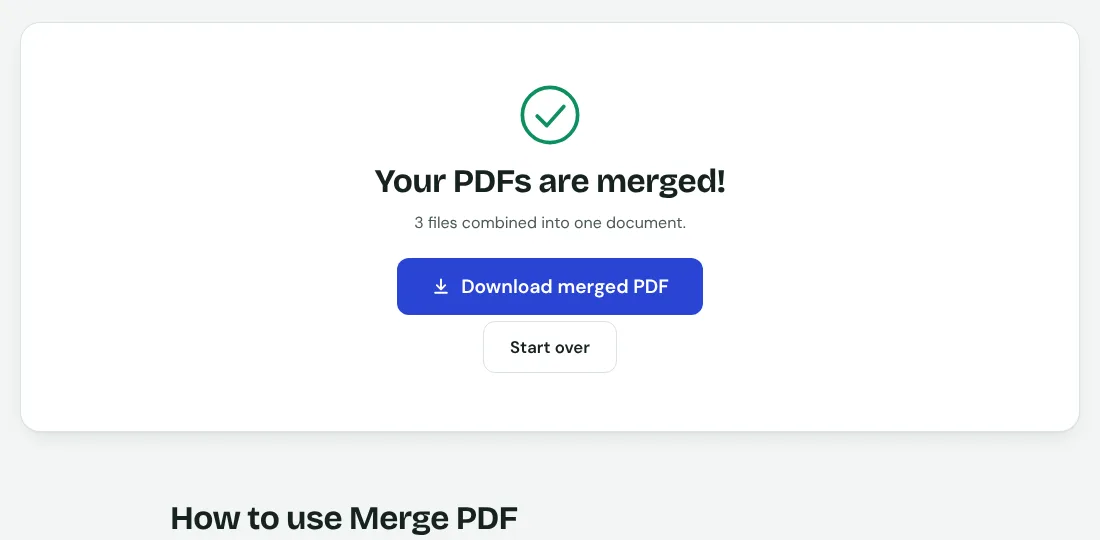
Merging an 8-page report, a 1-page scan and a 12-page file gave one PDF of 21 pages and about 1.2 MB. Check the order on screen before you press merge, because it is much easier to fix there than afterwards.
Step 3: clean up
Look through the merged file for blank pages, duplicates and sideways pages. Removing blank pages takes a minute and is worth it, since nobody wants to read a blank page, and a reviewer may wonder if something is missing.
Step 4: compress, then OCR
Compress once at the end. A 10-page scan of 8.95 MB became 907 KB at the Recommended level. Then run OCR so the pages can be searched. In a test, a single scanned page of 1.18 MB came out of OCR as a 329 KB searchable file, and the words were read correctly apart from a 1 read as a lowercase L.
Step 5: protect and number
If the file contains personal documents, add a password with Protect PDF and send the password in a separate message. Add page numbers before this step, because you cannot edit an encrypted file without the password.
Check the final file
- Open it on a phone as well as a computer.
- Search for a name that should appear in it.
- Check the size against the limit of the place where you will send it.