How to separate pages from a PDF
This guide is for the case where you have a long PDF and need only a few pages out of it: one invoice from a bank statement, the signed page of a contract, a single chapter.
If what you want is to cut the whole file into equal parts, or one file per page, the guide to splitting a PDF covers that. And if you just want to throw some pages away, see how to remove pages. Same tool family, three different goals.
Pull out the pages you need
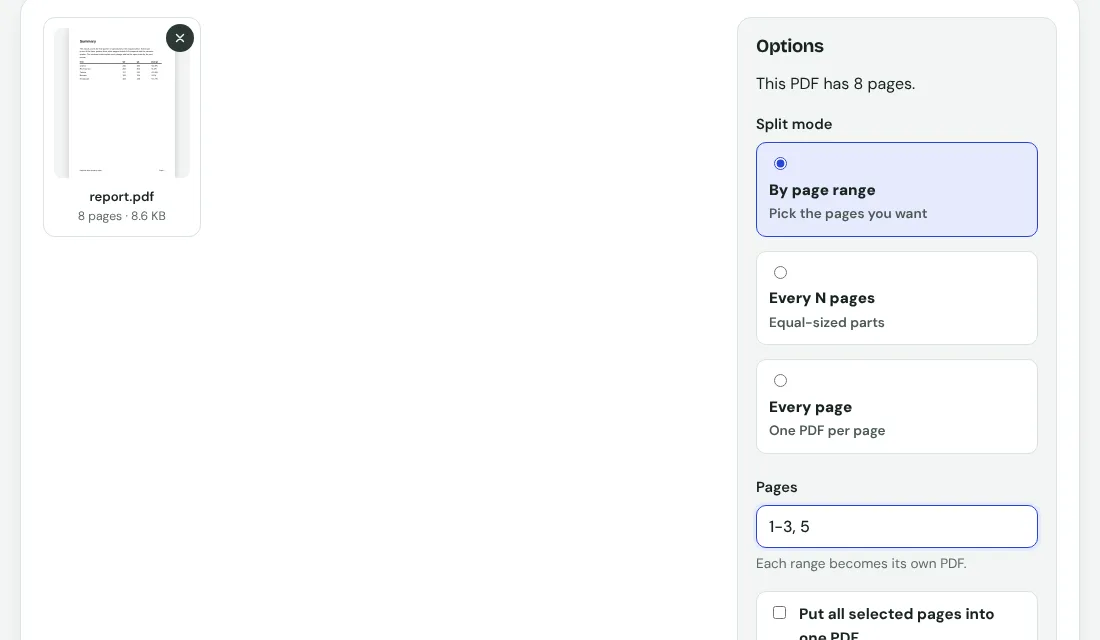
- Open the Split PDF tool.
- Add your PDF.
- Choose By page range and type the pages, for example 3-7.
- Press Split PDF and download the result.
It all happens in your browser, so a bank statement or ID copy is never uploaded.
Writing the ranges
- 3 gives only page 3.
- 3-7 gives pages 3 to 7.
- 1-3, 5, 8-10 gives separate files: pages 1 to 3, page 5, and pages 8 to 10.
- Tick the option to keep the selection in one PDF if you want a single file containing only those pages.
Two things that trip people up
- Page numbers are counted from the start of the file, not from the number printed on the page. A document whose cover is unnumbered will be off by one.
- Check the page count first. Asking for page 12 in a ten-page file gives an error, not a short file.
Extract, split and remove: which is which
- Extract (this guide): you name the pages you want, and you get a new file with only those.
- Split: you cut the file into equal parts, or one file per page.
- Remove: you name pages to throw away, and the rest stays in one file.
- The same result can often be reached in two ways. If you want 3 pages out of 10, extracting 3 pages and removing 7 pages give the same file. Pick whichever list is shorter.
Example: one invoice out of a long statement
A bank statement has 14 pages, and you only need the page with a particular payment, which is page 9. Open the Split tool, choose By page range and type 9. You get a one-page PDF. If the payment runs over onto page 10, type 9-10 instead. Then check the file by opening it, because the first page of a document is not always numbered 1 on paper.
What to do next
- A page is sideways? Fix it with Rotate PDF.
- Want the extracted pages in a different order, or joined with other files? Use Merge PDF.
- Still too big to send? Run it through Compress PDF.
- Contains private details? Add a password with Protect PDF before you send it.