How to compress a PDF for email
You attach a PDF, press send, and the email bounces or the upload bar never finishes. Most email services limit attachments to roughly 20 to 25 MB in total, and some company and school mailboxes are stricter.
The fix is usually quick, but the right setting depends on what kind of PDF you have. Below are the actual results from one test file, so you can see what each level does before you try it.
Compress a PDF in five steps
- Open the Compress PDF tool.
- Add your PDF file.
- Choose a compression level. Recommended is a good start.
- Click Compress PDF and look at the before and after sizes.
- Download the file and open it to check the pages before you attach it.
The file is compressed inside your browser, so contracts and bank statements are not uploaded anywhere.
What each level did to a 10-page scan
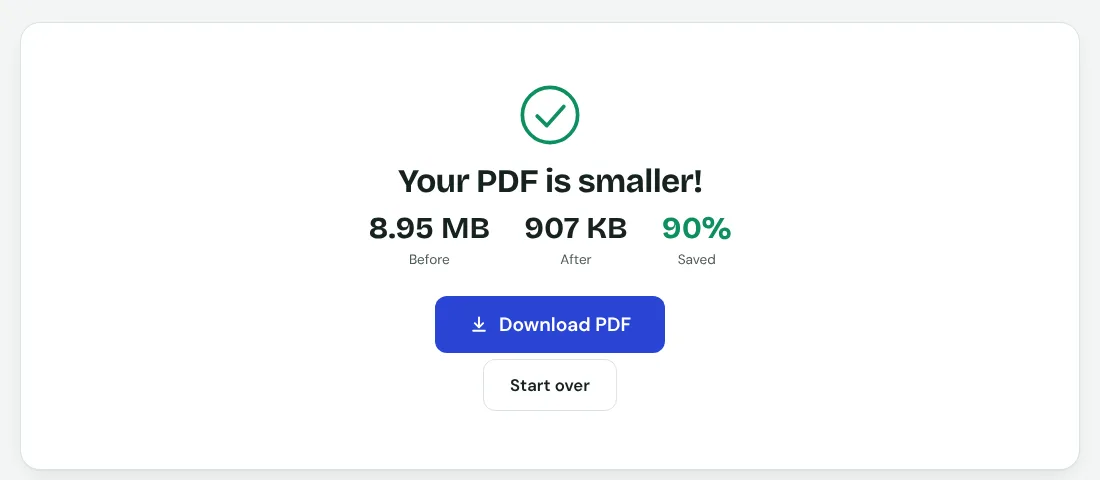
- Recommended: 907 KB. About 90 percent smaller, and the page still looked normal at reading size.
- Strong: 228 KB. Smaller again, with visibly softer small print.
- Extreme: 101 KB. Tiny, fine for a quick look on screen, not good enough for printing.
- Lossless: 8.95 MB. For a scan it saved essentially nothing, because the pages are pictures and this level does not touch them.
The test file was a 10-page A4 scan of 8.95 MB, the kind of size that gets rejected by many portals. Here is what came out:
Which level should you choose?
Start with Recommended. If the file is still over the limit, step up to Strong. Reserve Extreme for cases where only the size matters and nobody will print the file.
Lossless is for the opposite situation: a PDF made from a document, where the text should stay selectable. On a typed 8-page report it only took the file from 8.6 KB to 6.6 KB, so do not expect much from it, but do expect the pages to stay exactly as they were.
One thing to know about text
Recommended, Strong and Extreme turn each page into a compressed image. That is why they shrink scans so well, and it also means you can no longer select or search the text. Keep your original file, and if you need searchable text in the small version, run it through OCR afterwards.
Still too big? Try these
- Split the PDF into two parts and send two emails.
- Remove pages you do not need, such as blank scans or cover sheets.
- Rescan at 150 to 200 DPI. Higher resolutions only add size.
- Share a link from your cloud storage instead of attaching the file.
Before you send
- Zoom in on the small print and any signature to be sure they are still readable.
- Keep the original in case you need full quality later.
- Give the file a clear name, such as invoice-march-compressed.pdf.