How to rotate a PDF and save it permanently
You open a scanned contract and half the pages are sideways. Or a phone scan came out upside down. Most PDF readers let you turn the view, but the next person who opens the file sees the crooked pages again.
To fix it for good, the rotation has to be saved inside the PDF itself. That takes under a minute and does not need an upload.
Rotate a PDF in four steps
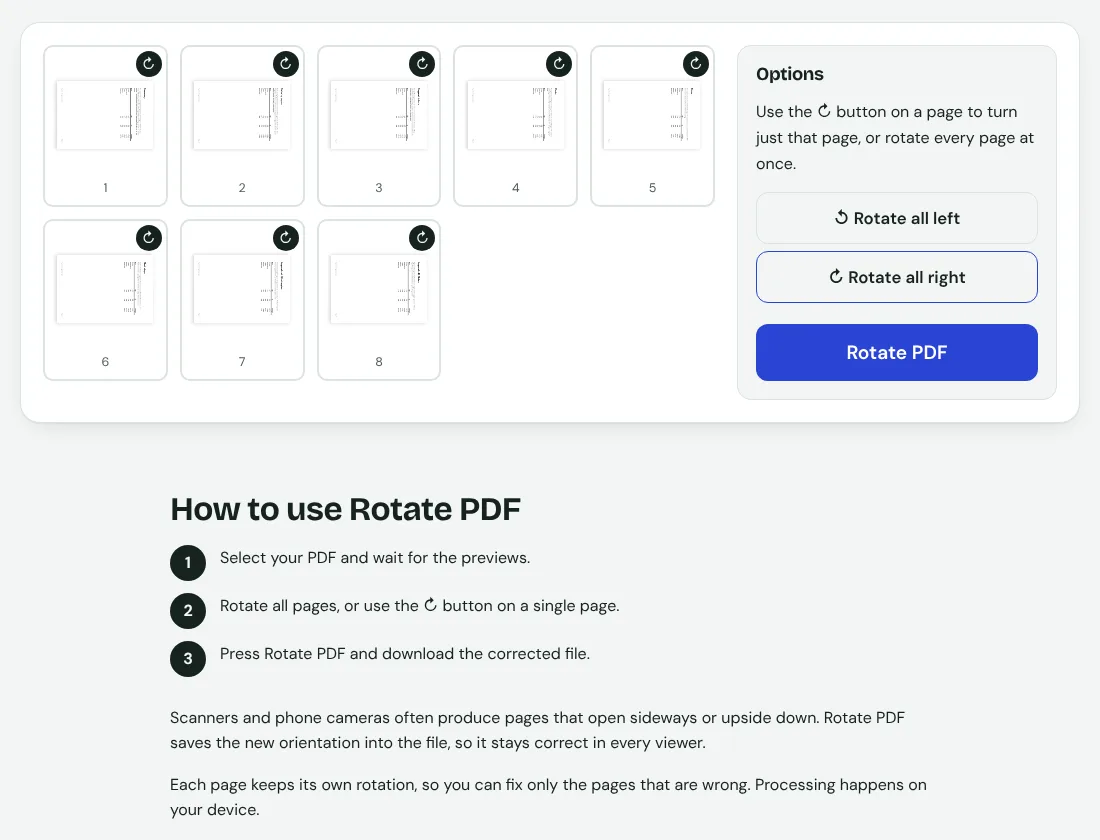
- Open the Rotate PDF tool.
- Add your PDF. A small preview of every page appears.
- Press the rotate button on a page to turn only that page, or use Rotate all left or Rotate all right.
- Press Rotate PDF and download the new file.
The result is saved as a new file, so your original is not changed.
One page, a few pages, or all of them
- A few pages are wrong, for example landscape pages in a portrait document: rotate just those pages.
- The whole file is sideways, which is common with scans: use Rotate all.
- Pages are upside down: turn the same page twice, or apply Rotate all twice.
What gets saved
In a test on an 8-page PDF, after Rotate all right, all eight pages carried a 90 degree rotation in the saved file, and the file size barely changed (8.6 KB before, 6.6 KB after, because the tool rewrites it cleanly). Nothing is redrawn or turned into an image, so text stays selectable and sharp.
Why turning the view is not enough
A viewer only changes how the file looks on your screen. Printing, emailing it, or opening it on a phone can bring back the old orientation. Saving the rotation changes the page setting inside the file, so every app shows it the right way up.
Do the rotating at the right moment
- Fix orientation before you merge files, so the combined document is consistent.
- If you only need part of the document, split first and rotate just that part.
- Remove blank or unwanted pages with Remove pages before you share.
- Scroll through the result once to be sure every page is right.
Privacy
The rotation runs in your browser, so contracts, ID copies and invoices are not sent to a server.