How to delete specific pages from a PDF
This guide is about picking the exact pages: page 3 only, pages 5 to 8, the first and last page, or a handful of pages scattered through a long file.
If you only want the quick click-and-save version, the guide on removing pages from a PDF covers that. Here we focus on page numbers, ranges and the built-in methods on Mac and in Chrome.
Delete pages by number in your browser
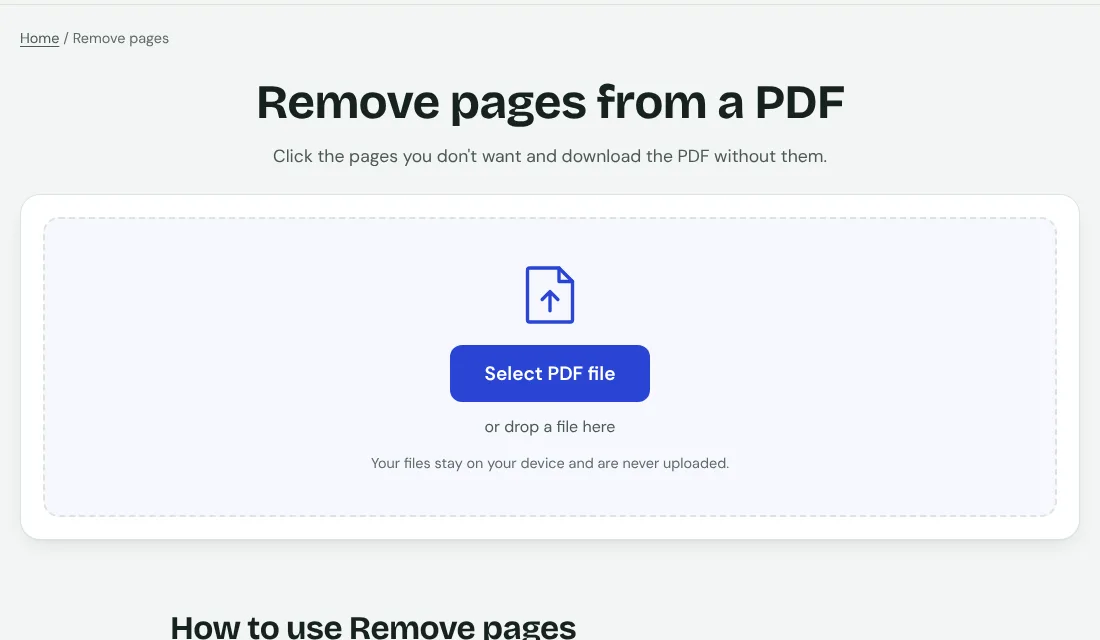
- Open the Remove pages tool.
- Add your PDF.
- Type the pages to delete, for example 2 or 4-6 or 1, 9.
- Save the new PDF. Your original stays untouched.
The pages are removed on your own device and the file is not uploaded.
How page ranges are written
- One page: type just that number, such as 7.
- A range: first and last number with a dash, such as 5-8 (this deletes pages 5, 6, 7 and 8).
- Several separate pages: separate them with commas, such as 1, 4, 9.
- Mixed: 1, 3-5, 12 deletes page 1, pages 3 to 5, and page 12.
Delete the first page or the last page
For the first page, simply enter 1. For the last page you need the total page count: open the PDF, look at the page count shown in the preview (say 24), and enter that number. Do this before you start, because typing a number higher than the page count will not match anything.
Printed page number vs position in the file
The number printed on a page and its position in the PDF are often different. If a report has a cover page and a contents page, the page printed as 1 may be the third page in the file. Always use the position shown in the preview, not the printed number.
Delete every other page or a repeating pattern
Double-sided scans often leave a blank page after every sheet. If a 12-page scan has blanks on pages 2, 4, 6, 8, 10 and 12, type exactly that list: 2, 4, 6, 8, 10, 12. For long files, write the list in a notes app first so you do not miss one.
Built-in alternatives
- Mac: open the PDF in Preview, show the page thumbnails, select a page and press Delete.
- Chrome or Edge: open the PDF, choose Print, select Save as PDF, then enter only the page ranges you want to keep.
- To keep only a few pages and drop the rest, the Split PDF tool with a page range is faster than deleting many pages one by one.
Deleted the wrong page?
Because the tool creates a new file, run it again on the original PDF with different pages. Keep the original until you have checked the result.
Fix the numbering afterwards
Gaps in page numbers look careless. Use the Add page numbers tool to renumber the pages, or Merge PDF if you want to combine the result with other files.